NotebookTools
Trying Figma's code layers: I wish I'd had this last month
I tested Figma's new code layers on this site and on a client project. Some quick thoughts, written while I was still clicking around.
In my last note on AI and design, the friction I kept coming back to was the handoff. Getting what's in Figma into something an agent can build from, then keeping the two in sync. A teammate and I didn't even agree on where the source of truth should live. I leaned toward code. He wanted Figma, because nudging something by hand is faster than describing it to an AI.
Figma just opened up code layers, so I tried them. These are my notes from while I was testing, not a review.
What it is, quickly
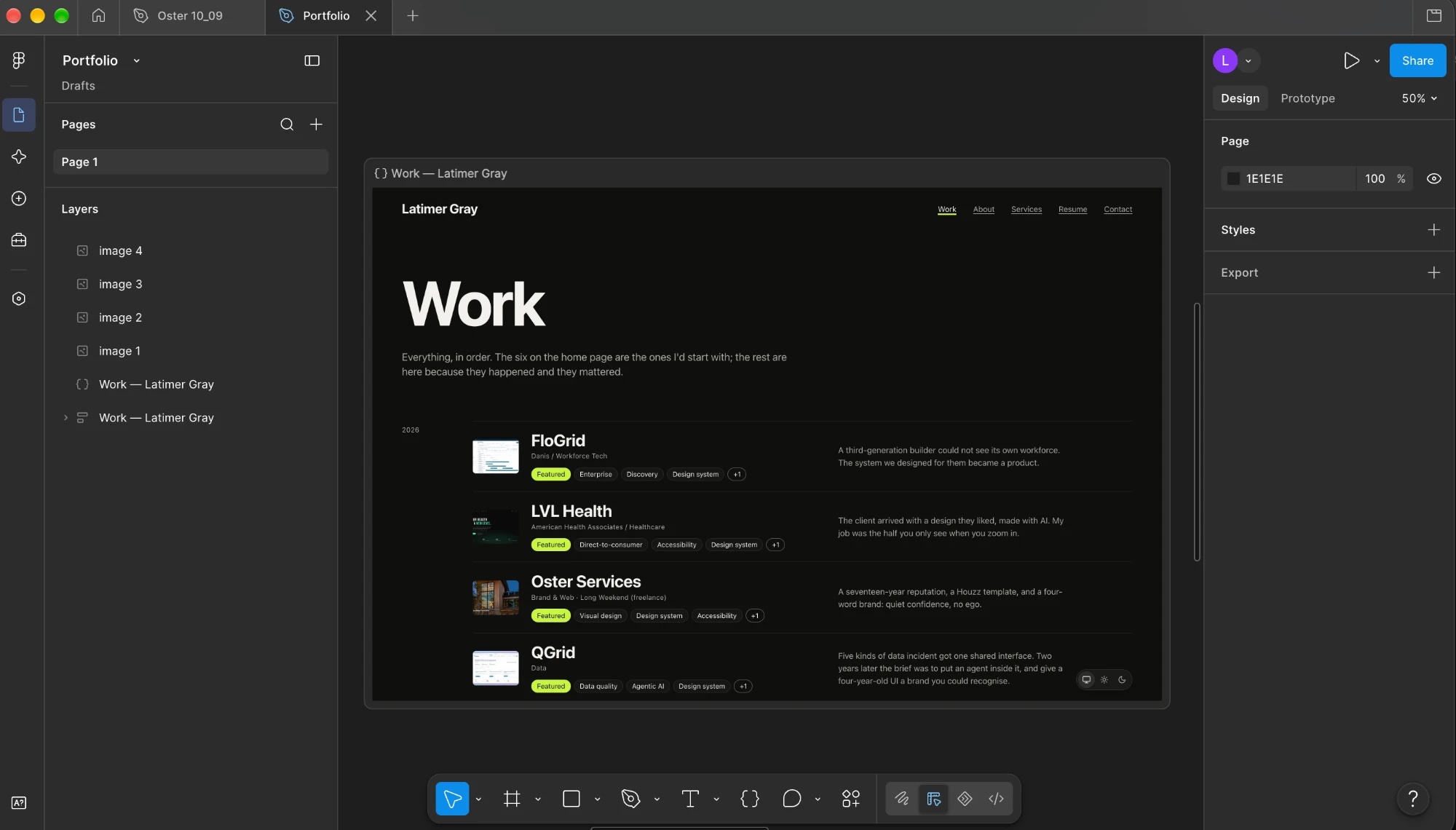
A code layer is a real, working page that lives on the Figma canvas, right next to your design frames. You can build one from a design, pull in a site with Figma's Chrome extension, or bring in a repo. Then you can edit it with the Figma agent, in the code, or by clicking on things like you would in a normal Figma file. It's in open beta, and it's free on paid plans until November 4, 2026 (details).
What I tried
This site. I used the Chrome extension to grab my portfolio straight from the browser.
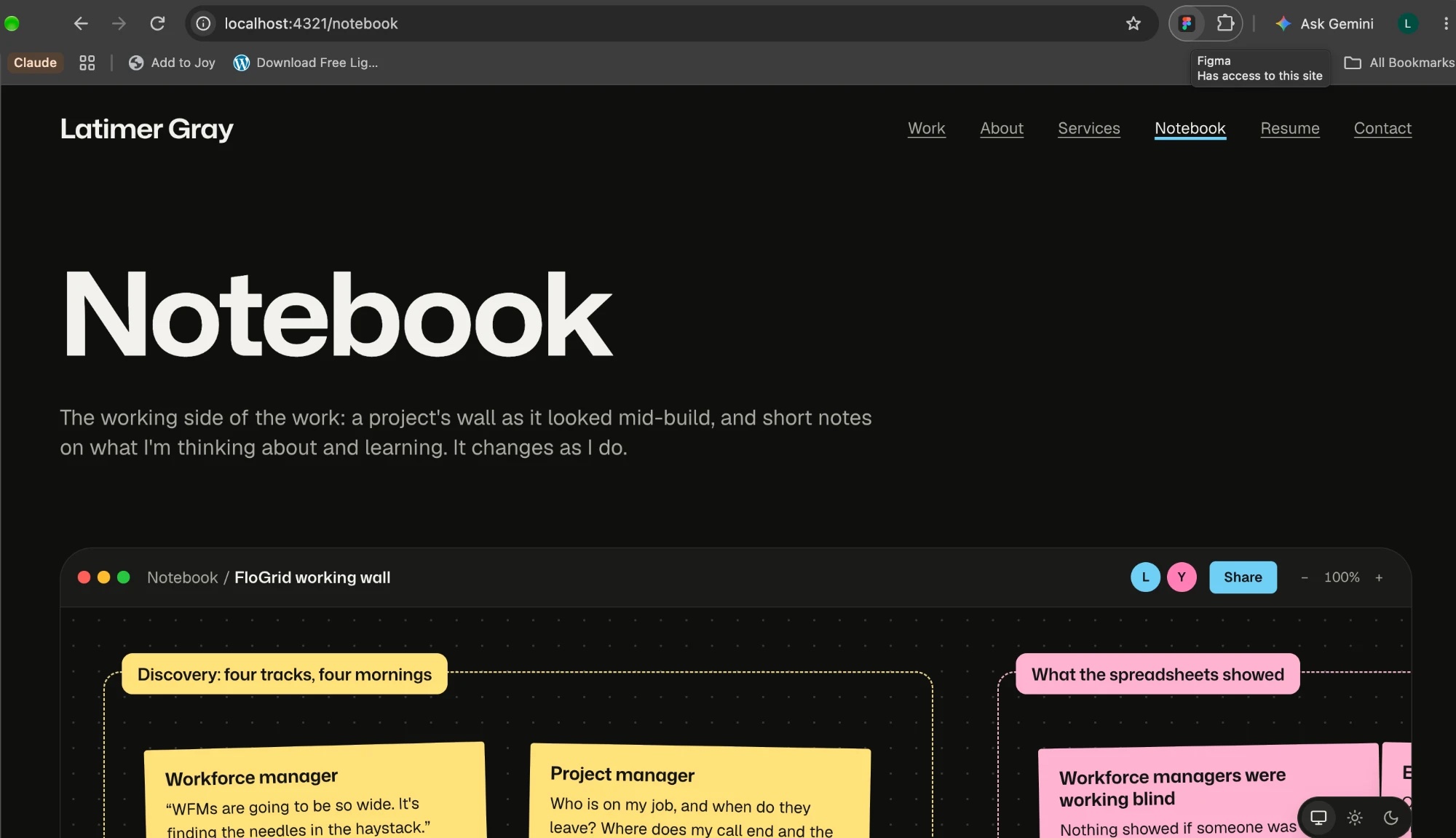
It landed on the canvas as a working code layer next to my frames.
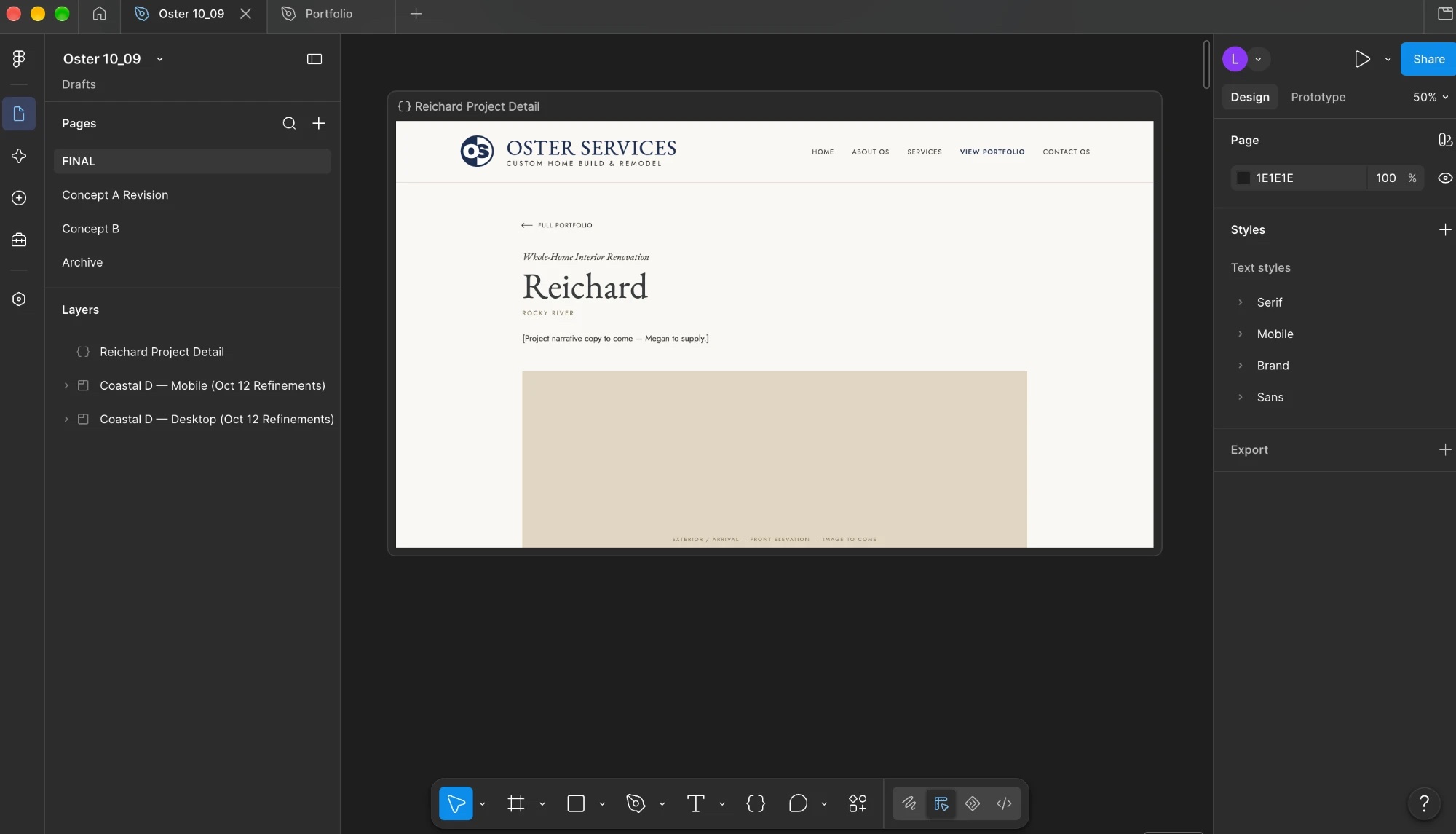
Oster Services. For the client site, I went the other way. I selected a finished design and asked the Figma agent to build a code layer from it. A couple of minutes later I had a responsive page with the right fonts, the images, and a working mobile menu.
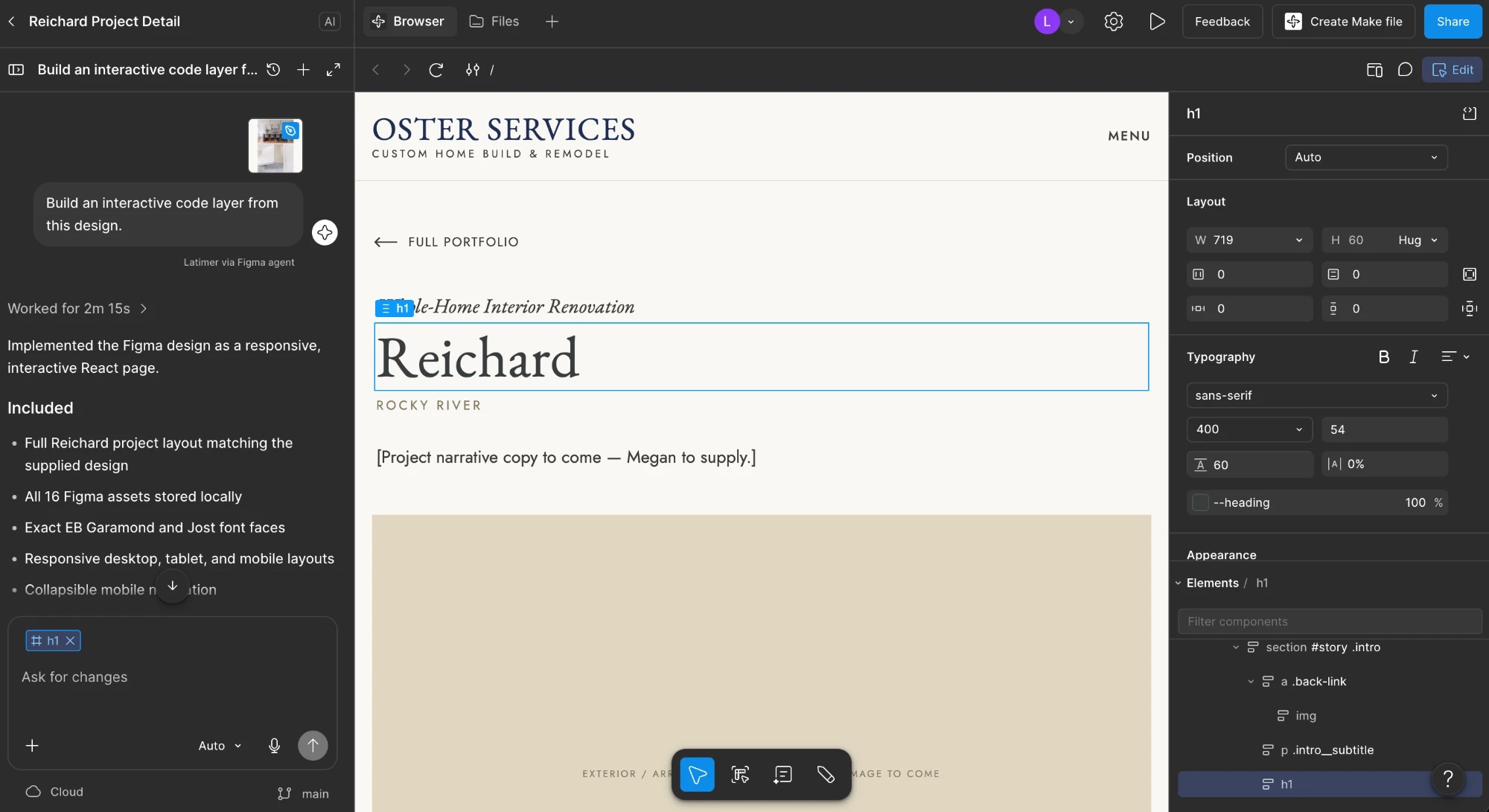
Then I opened it in edit mode.
What I liked
It's visual. I can click an element and change it the same way I would in a Figma file, and see the result right away. That's a big deal. Designers think visually. Writing specs in Markdown works, but it's not really our language. This is.
You learn the code by looking at it. When you select something, you see what it's called in code: the h1, the section with its class, the subtitle. If you're a designer who isn't fluent in code yet, seeing that over and over is how you get comfortable with it.
It seems to use your variables. I could see and use existing variables in the panel. I don't know yet how that lines up with a design system living in a real repo, but it looks like it's headed there.
What I'd want
Bring my own agent. Right now the chat is the Figma agent. I'd love to switch to Claude or whatever agent I already use through MCP, right in that panel. Maybe that's possible and I just haven't found it.
See where it goes. I don't have a clear picture yet of how changes make it back to the repo, or into another editor. Figma says you can push to a branch and open a pull request, so that's what I'm testing next.
Where I think it fits
On FloGrid I was working in an IDE kind of blind: make a change, push it through GitHub, then go check what it actually looked like. This would have cut a lot of that back and forth. Honestly, I wish I'd had it last month.
It might also be the middle ground in that argument with my teammate. Designers get to work hands-on and visually, and the code stays real. Nobody has to translate the other side's work by hand.
It's a beta, and I'm treating it like one. But it's the first tool I've tried that's aimed right at the gap I keep writing about.